About AT
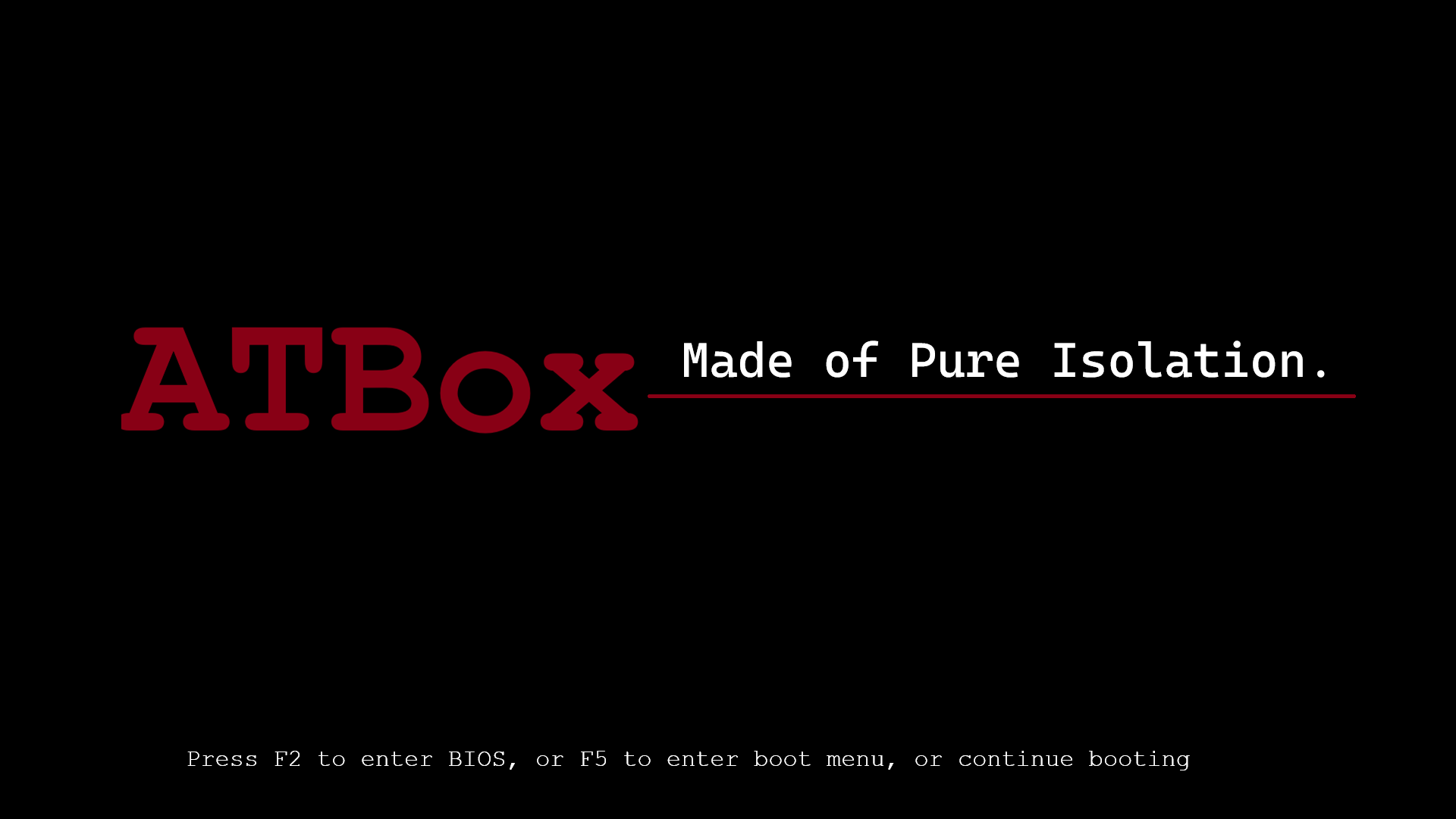
AT Box is a browser-based operating system simulation designed to replicate the look and behavior of a real desktop environment. It combines visual elements, system logic, and interactive components to create an experience similar to using an actual computer. The project focuses on realism, including boot sequences, system modes, applications, and recovery tools. It is built to demonstrate how an operating system works at a conceptual level while remaining lightweight and accessible through a web browser.
The Explorer
The Explorer in AT Box acts as the system's file manager, allowing users to navigate through directories, view files, and simulate file operations. It is designed to resemble traditional file explorers found in operating systems, providing a familiar interface for browsing system contents. Users can open folders, inspect system files, and interact with the simulated filesystem structure. Although the files are not real, the behavior mimics real-world file management to enhance realism and usability.
Applications
Applications in AT Box represent the programs and utilities that run within the system environment. These include system tools such as Notepad, AT Guide, and other built-in apps designed to simulate everyday computer usage. Each application operates within the constraints of the simulated OS, interacting with the user interface and system states. The purpose of applications in AT Box is to provide functionality while maintaining the illusion of a complete and interactive operating system.
BootMGR
BootMGR in AT Box simulates a boot manager similar to those found in real computers. It is responsible for determining how the system starts and which mode to load, such as normal boot, recovery mode, or diagnostics mode. When the system initializes, BootMGR either presents options or automatically selects a boot path depending on the system state. This component plays a key role in controlling startup behavior and managing transitions between different system environments.
Recovery
Recovery Mode is a special system environment built into a computer's operating system that helps diagnose and fix problems when the system fails to start or function properly. When a device enters Recovery Mode, it loads a minimal set of drivers and tools instead of the full operating system, allowing users to perform tasks such as repairing corrupted files, restoring the system to a previous state, reinstalling the operating system, or accessing advanced troubleshooting options. This mode is especially useful during system crashes, boot failures, or after malware infections, providing a safe and controlled way to recover the computer without affecting essential hardware components.
Diagnostics
Diagnostics Mode is a minimal, command-line–based troubleshooting environment designed to simulate a low-level system repair console. Unlike the normal desktop or even recovery mode, it strips everything down to a terminal-style interface focused purely on system inspection and repair tasks. When the user selects Diagnostics from the BIOS or Boot Manager, the system sets the boot state to diagnostics and launches a dedicated diagnostics screen instead of loading the desktop. It provides a command-driven interface where users can execute system-level operations such as checking files, verifying disk integrity, simulating repairs, and navigating system components. This mode is particularly useful for identifying system faults, testing recovery procedures, and emulating real-world repair environments in a controlled setting.
Applications of Diagnostics Mode
Diagnostics Mode in a computer system is primarily used for advanced troubleshooting and system repair when normal operation is not possible. It provides a controlled environment where users and technicians can inspect system files, verify disk integrity, and execute repair commands without interference from the full operating system. Common applications include identifying corrupted or missing system files, repairing boot issues, performing disk checks, restoring critical components, and testing basic system functionality. Because it operates with minimal resources and limited services, Diagnostics Mode is especially useful for isolating software-related problems, analyzing system behavior at a low level, and safely attempting recovery operations without risking further damage to the main system environment.
Go to BootMGR
To access BootMGR in AT Box, you need to shut down the operating system using the available system option. Since AT Box does not simulate real hardware-level shutdown, this action will close the current OS session and redirect you to the Boot Manager interface instead of powering off completely. Once inside BootMGR, you can select how the system should start, including options like normal boot, recovery mode, or diagnostics mode. This allows you to control the system's startup behavior and choose different environments for testing or troubleshooting.
Explore Files
To explore files in AT Box, open The Explorer application from the desktop or taskbar. Once opened, you can navigate through folders and view system files using the interface provided. Clicking on directories will reveal their contents, and selecting files may allow you to open or inspect them depending on their type. This simulates a real file manager and helps you understand how files are organized within the system.
Use apps
Applications in AT Box can be accessed from the desktop or any available launcher within the system. To use an app, simply click on its icon to open it. Each application runs within the simulated environment and may provide different features such as text editing, system information, or guides. You can switch between apps, interact with their interfaces, and close them when finished, similar to a real operating system.
Use Recovery Mode
To use Recovery Mode, access BootMGR during system startup and select the recovery option. Once entered, the system will load a minimal environment designed for troubleshooting and repair. From here, you can perform actions such as fixing system issues, restoring previous states, or accessing advanced tools. Recovery Mode is intended for situations where the normal system cannot function properly, providing a safe way to diagnose and resolve problems.
AT Box 1.0.3
Kernel: deb-u0.816.
Not affiliated with any organisation or company.